
Section 3.2 How to Create a course
-
Log in to Runestone by clicking on the Login button at https://runestone.academy if you already have an account with Runestone Academy. If you don’t have an account then you can create one at https://runestone.academy/admin/auth/register. When you register, it will ask to enter the name of an ebook. You can enter the name for any of the existing ebooks.
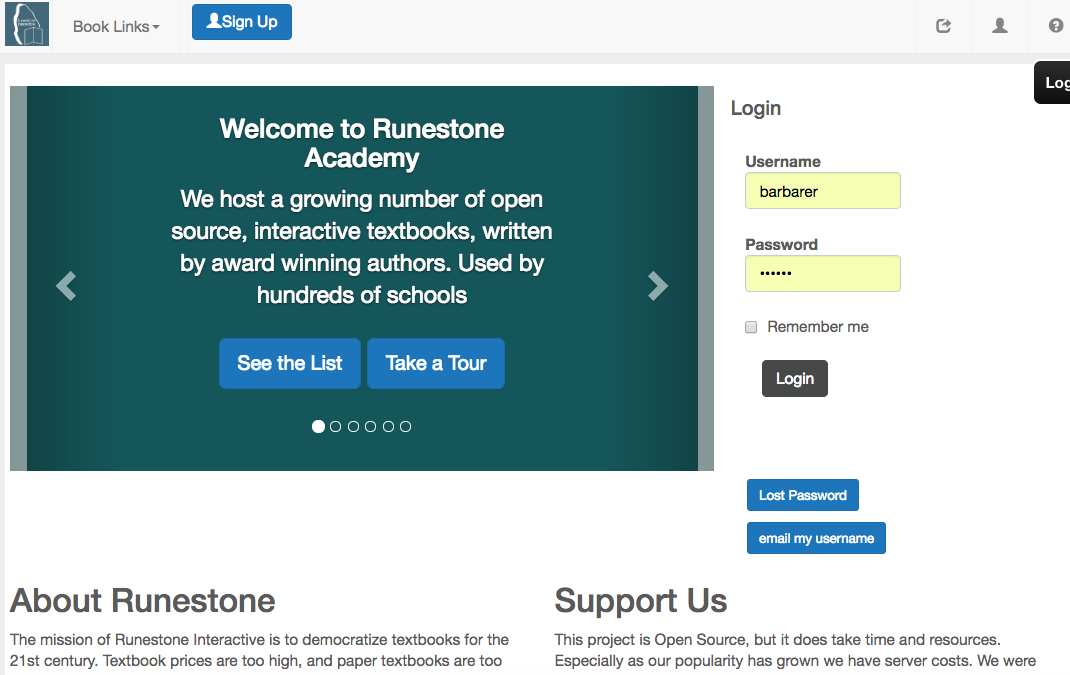
Figure 3.2.1. Figure 1: The login screen for Runestone Academy -
Go to the Instructor Dashboard from the user menu or the links at the bottom of the Course Home Page and click on the Create a Course link or go directly to the Build a course Page at https://runestone.academy/admin/instructor/create_course. Enter a description and the name of your institution. Choose a base course. A unique course name will be suggested for you. You can change this name, but make sure that it is unique. You may want to include your institution and a semester and year as part of the unique name. Scroll down and check the other options and then click “Submit”.
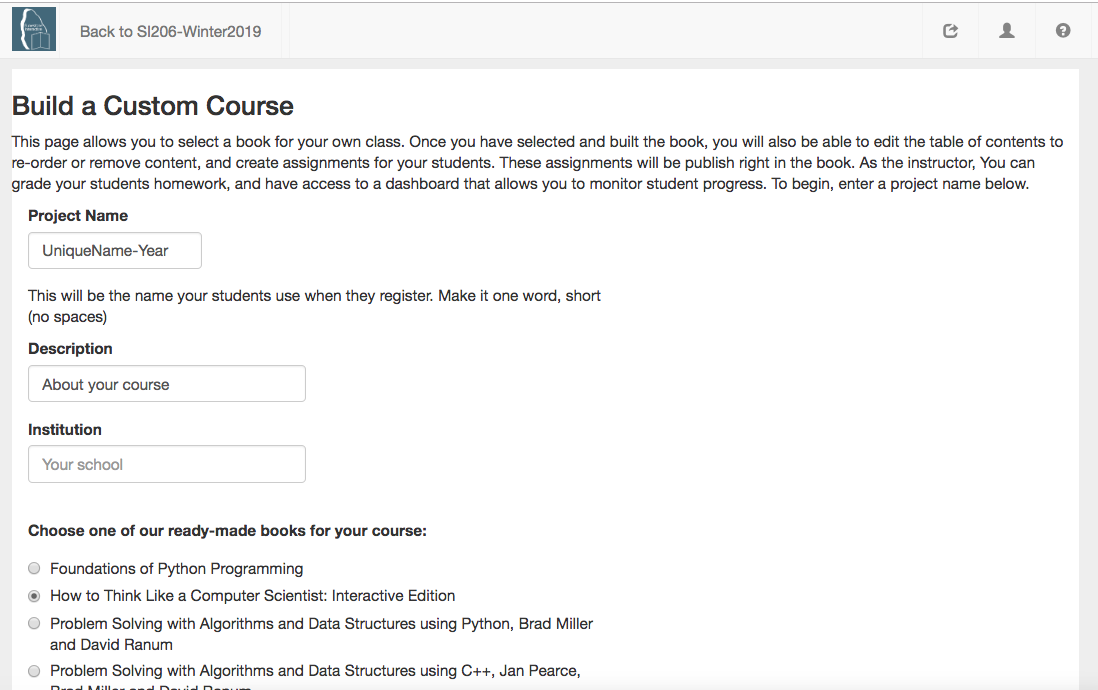
Figure 3.2.2. Figure 2: The Create a Course Page Of special note is the checkbox just above the submit button. This says that you would like to support Runestone at the rate of $10 / student from your department or school. This is totally VOLUNTARY! If you check the box you will get an invoice from us about a week after the starting date you entered for your course. If you can’t pay or do not wish to pay simply do not check the box. It is fine either way, but we would love your support if you are able.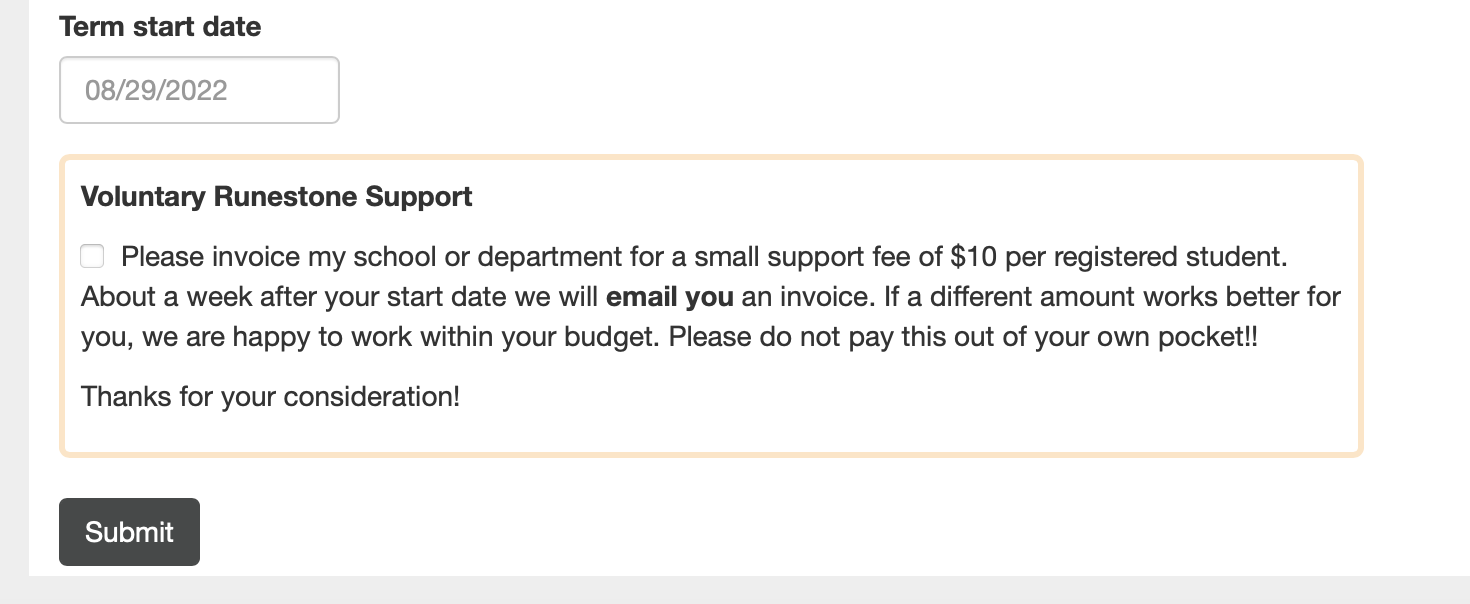
Figure 3.2.3. Support Runestone -
Success!
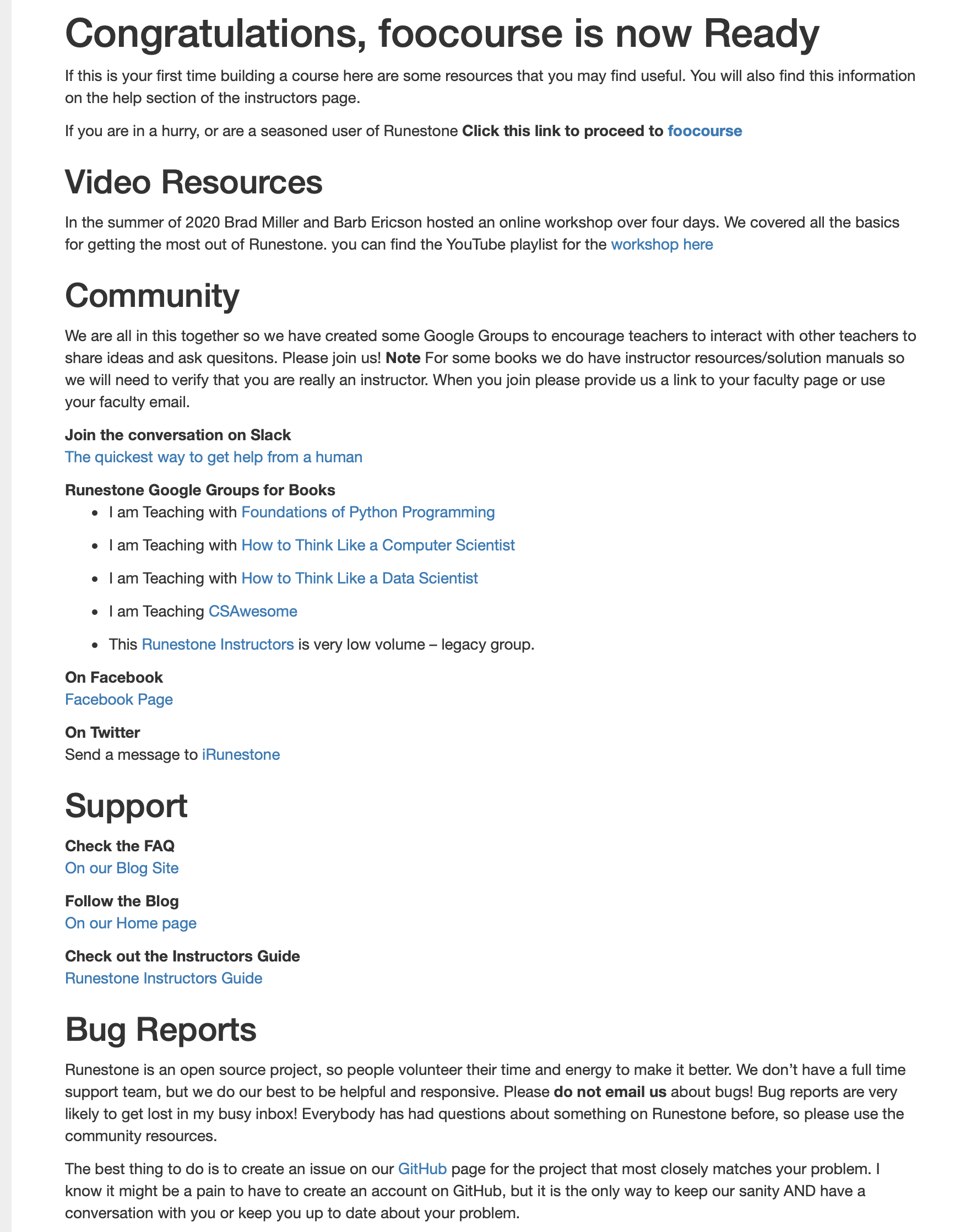
Figure 3.2.4. Build Successful The successful build page reminds you of some resources that you can use to get help. Please do not use email. Please check for and file problems on Github or with the new Problem Reporting page from the user icon menu. Many problems are duplicates and have already have workarounds or explanations. -
Your students can register for your course by using the unique name that you used when you created your course when they register at https://runestone.academy/admin/auth/register. If they already have an account on Runestone Academy, they can simply add another course using the new course name by selecting Change Course from the user icon menu or by going to My Courses page and then clicking on “Enroll in Another Course”.
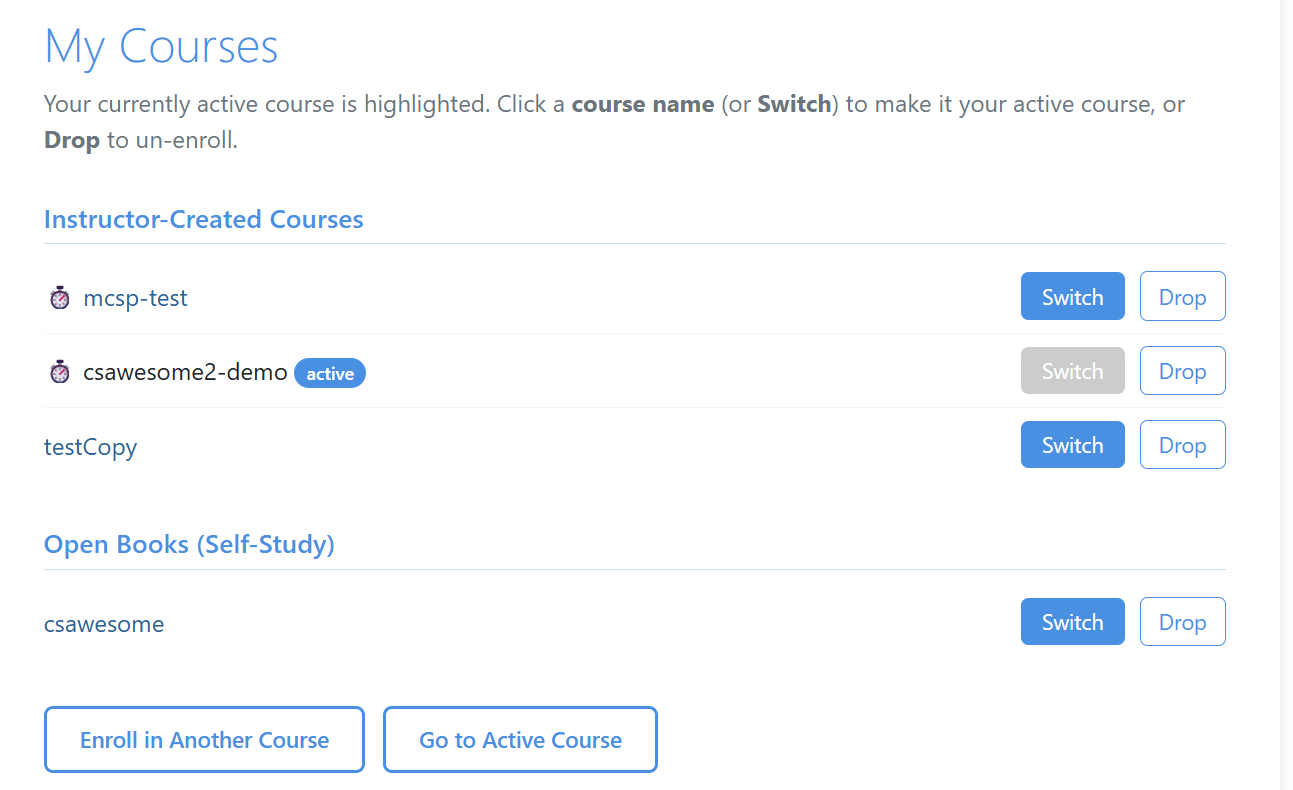
Figure 3.2.5. My Courses Page to Change Course
We will also cover how you can pre-register your students with a CSV file in another section.
This video demonstrates the process of creating a new course in the older interface: