When you created the course, you chose a unique course name. Give your course name to students. They will register on the site and enter that string as their course name. If you’ve forgotten what your course name is, you can see it displayed on the Course selection page https://runestone.academy/admin/auth/my_courses. You can access that page by clicking on the person icon at the top right of the window and then selecting Change Course.
Students will register for a course following the same procedures that were described Chapter 2. You just need to provide them with the text string for the course name.
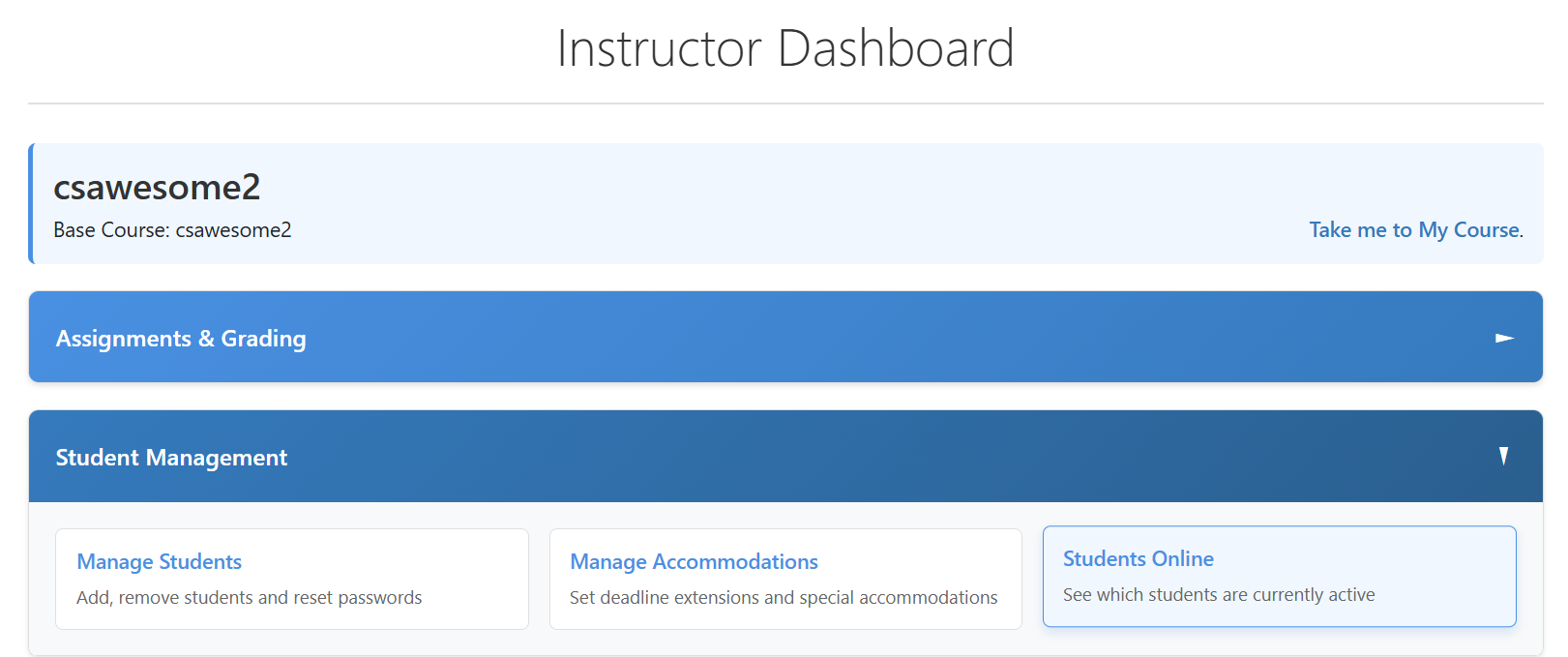
You can also pre-register your students by creating a CSV file and uploading that file through the instructor interface. Pull down the 👤 menu and select Instructor Dashboard then open the Student Management area and click on Manage Students.
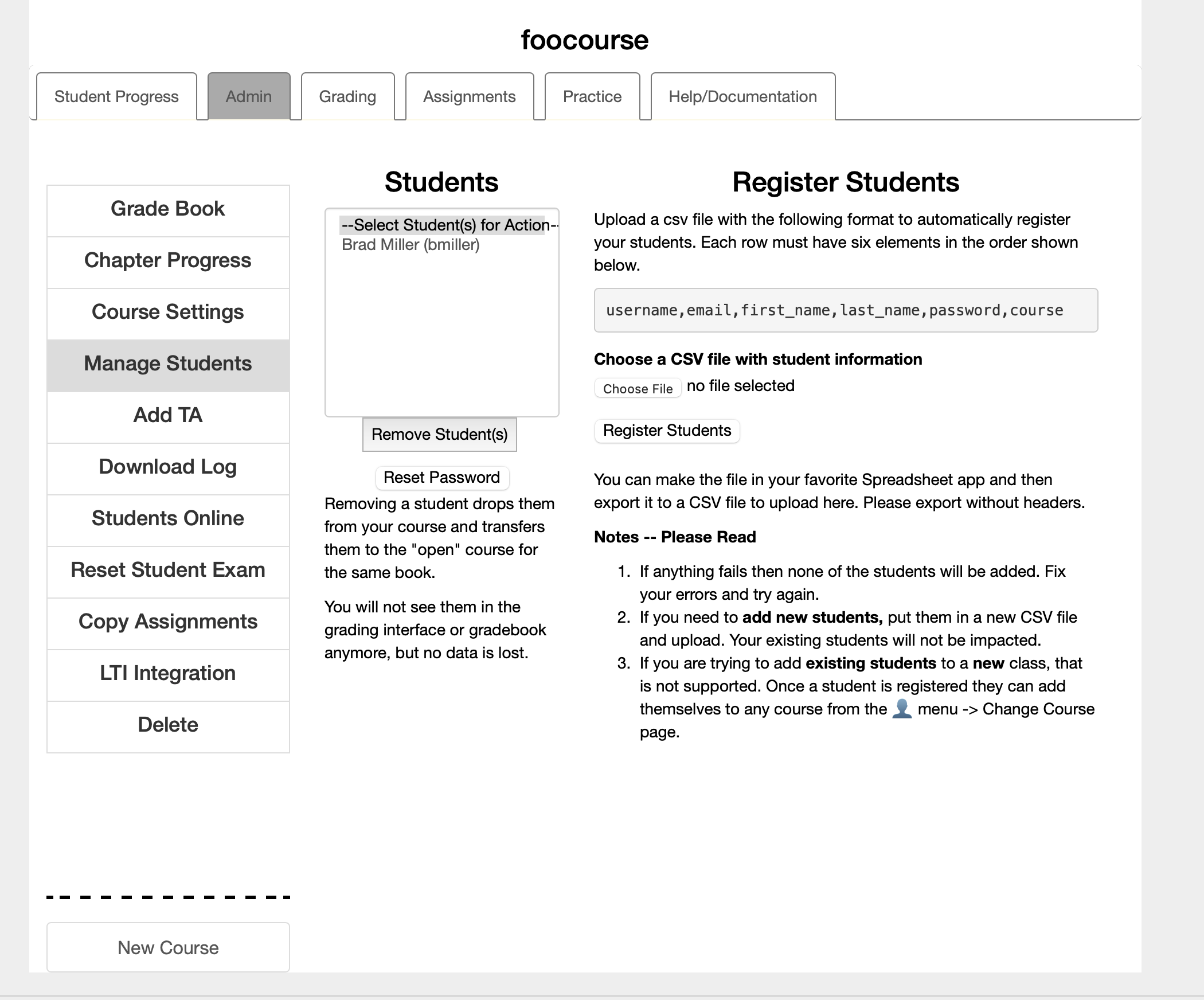
You can create a csv file in your favorite spreadsheet program and then export it to a csv or you can simply edit a textfile, whatever works for you. But note that some versions of Excel add a lot of empty columns and rows that really confuse our importer! Please check the csv file in a text editor before you upload it to runestone. Also note that if the csv file has any problems, like a duplicate username, nothing will be changed on the runestone server. The format of the file MUST be as shown in the figure.
Notice – There are no spaces after the commas. Excel is horrible at exporting it will add extra blank fields and lines that look like ,,,,,,,, Once you export from excel its best to clean things up in your favorite text editor. Also if you are using Excel make sure to export it as a UTF-8 encoded file, otherwise excel adds unreadable characters at the beginning.
When the file is created you can choose it and upload it to Runestone. It will verify the fields and if there are no errors it will register the students. The most common error is that the username is a duplicate. Usernames are the primary way we identify students and they must be unique. With over 120,000 students in the database there are bound to be duplicates. This is not a bug, it is a sign of growth.
If you add students to your class later you need to create a new CSV file just for them (or have them register themselves). Adding students to the end of your previous spreadsheet will result in lots of error messages about duplicate usernames.
You may also have noticed the "Remove Student(s)" button in Figure 4.1.3 This allows you to remove a student from your course. Although it seems self explanatory the reason to bring this up is to explain what happens to the student account when you remove them. The account is not deleted but rather the student and their work is moved to the base course. This allows a student to have access to their work and to continue working independently if they wish. As an instructor you do not have the capability to delete a student account. But anyone can delete their account and all of the information saved for that account by using the 👤 menu choosing edit profile.
There is no doubt about it, password management is a headache for everyone. Runestone handles hundreds of password reset requests each week. But that does not always work. Some schools (inexplicably) block email from Runestone. Other schools run software that simply mangles the URL’s found in emails that look like they are password reset emails. This is understandable to some degree as Phishing scams are so common, and its important to protect the students. I’ve done everything I can do from my side to validate the runestone.academy email domain. But, other times students simply type in their email incorrectly.
You may be get around some of these problems by asking your school to allow mail from runestoneinteractive@gmail.com to go through. If your IT department is not cooperative then your students will have to come to you to have their password changed. You can reset the password for any of the students in your course. Just select the student from the list and click the reset password button. I cannot respond to emails asking me to reset passwords, I don’t have the time to do that, and I do not have a reliable way to verify that those requests are legitimate. Yes many high schoolers think it is funny to try to trick me into resetting the password on one of their friends.
Instructors cannot change their own passwords through this mechanism. Who among us hasn’t walked away from the computer and left ourselves logged into Runestone? As an instructor, you will still have to use the normal email password reset mechanism. If your school blocks emails then I suggest you just get a free gmail address to use for this purpose.