
Section 2.3 Add an Additional Course
When you are logged in and looking at an eBook, click on the person icon in the upper right and select Change Course. That will take you to the My Courses page where you can switch to another course or enroll in a new course using the "Enroll in Another Course" button at the bottom of the page. The courses that you have recently used are at the top and marked by a clock icon.
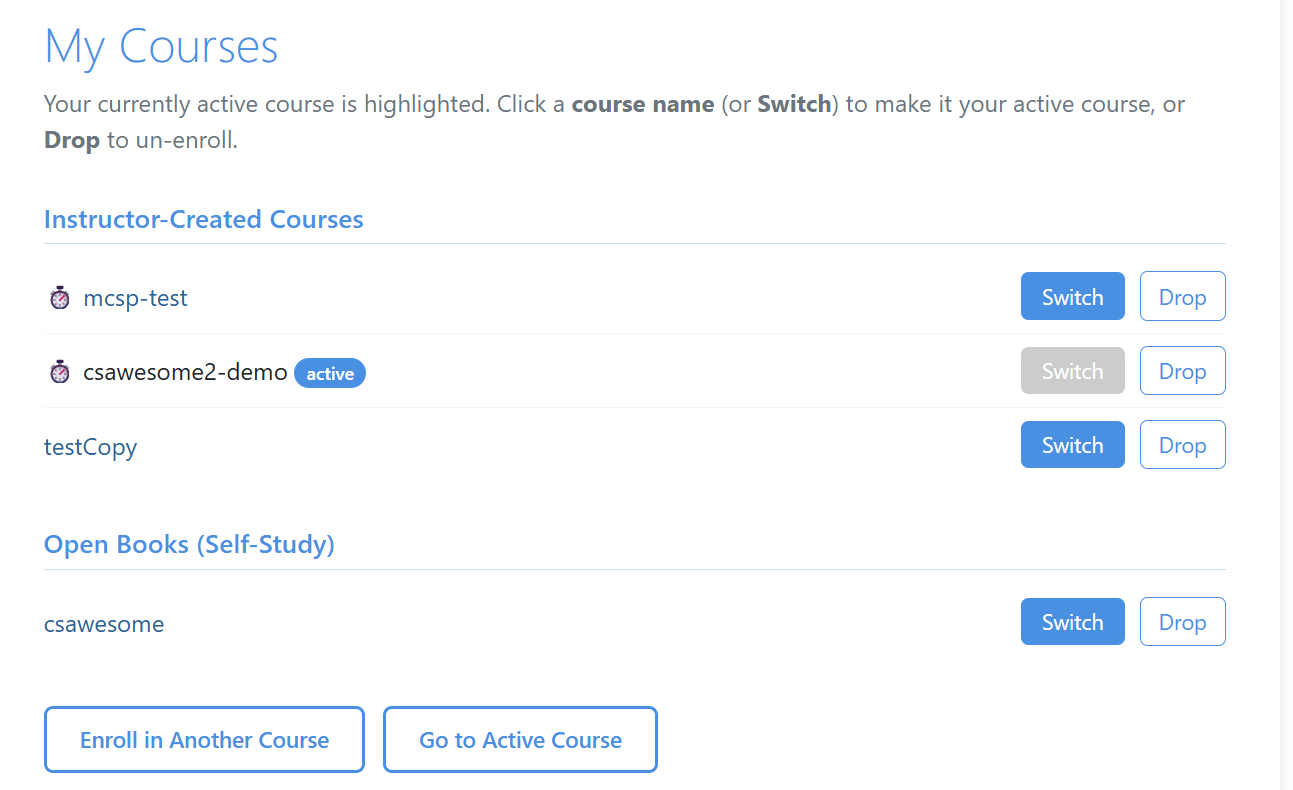
Click on the Enroll in a Course button, which takes you to a page that looks a lot like the registration choose a course page. You can enter a course name or choose another base course.
As an instructor you may find that the list of courses can get quite long. You can use the “Drop” button next to any course to unenroll yourself from that course, but make sure that you are first in an another active course. Please note it does NOT delete the course it only takes you out of it. You can always re-enroll at a later time. You cannot drop the course that you are currently active in without first switching to another active course.

