Section 6.4 Exams and Quizzes in Runestone
Subsection 6.4.1 Creating a Quiz/Exam Assignment
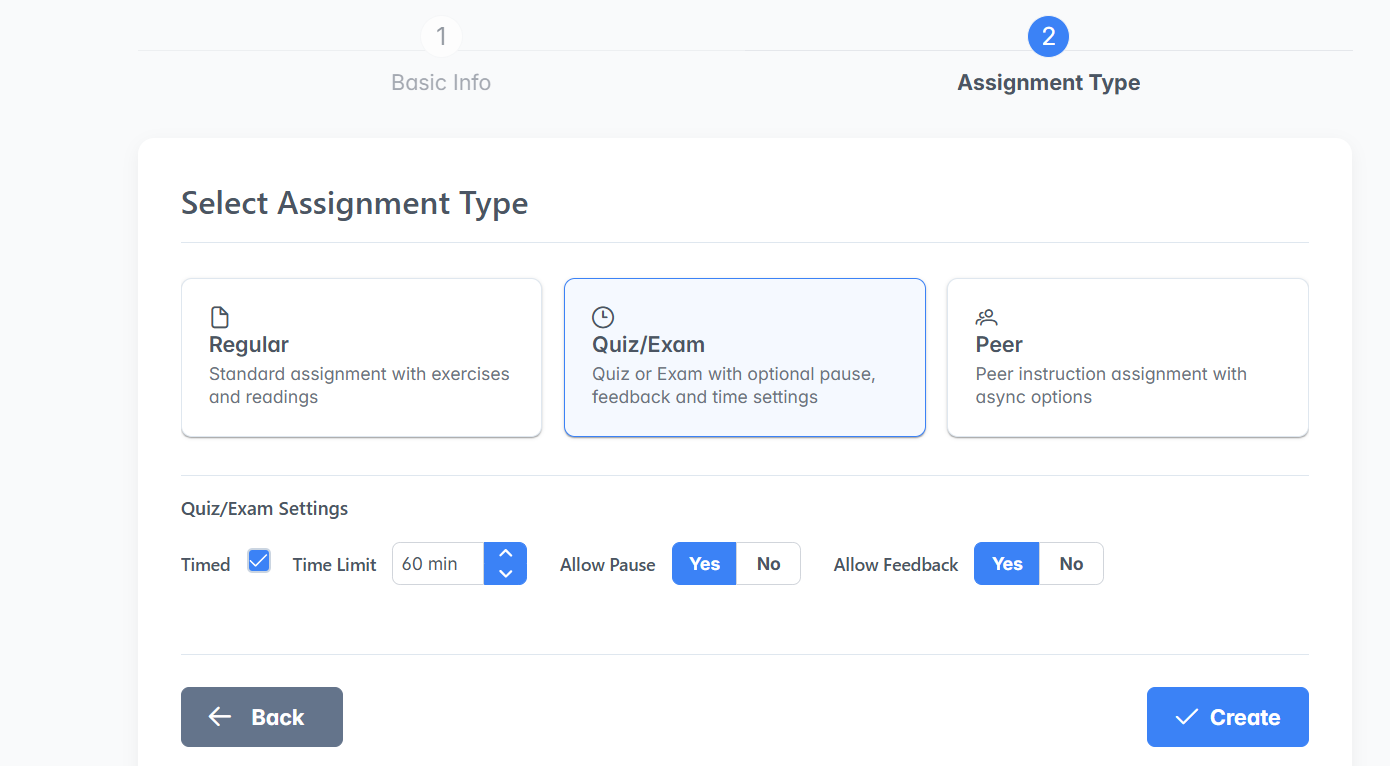
In the new Assignment Builder in the Instructor Dashboard, you can choose to make a new assignment a Quiz/Exam like below where you can select whether there is a time limit and whether pauses and feedback are allowed.
When the students first see a timed exam, it looks like this:
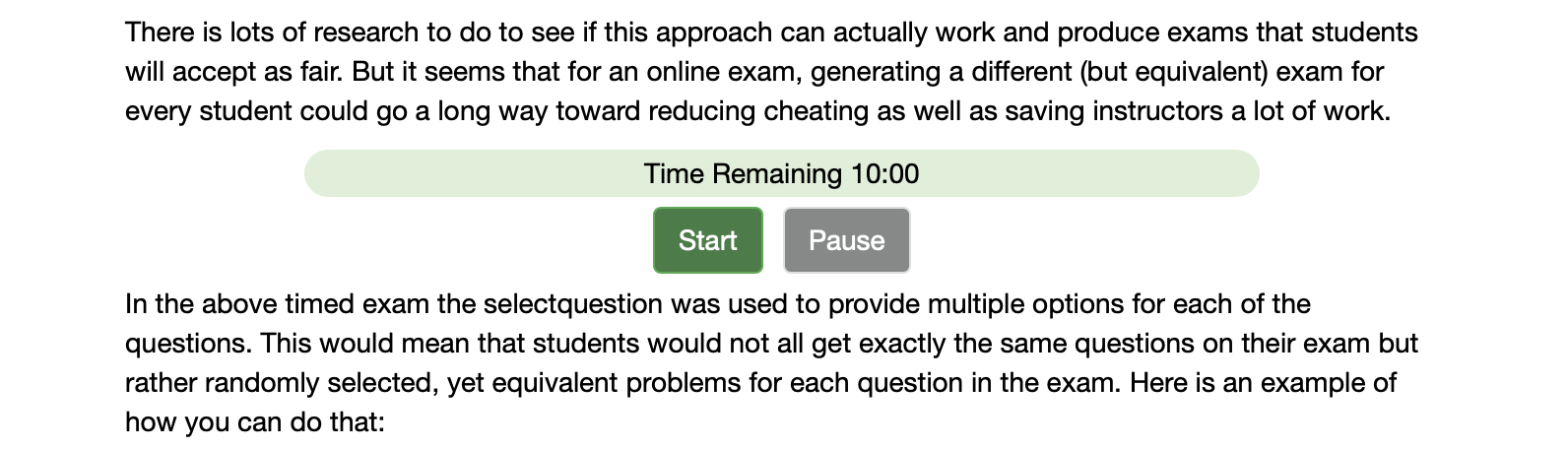
They cannot see any of the questions until they click the start button. When the start button is clicked the timer (if selected) is also started.
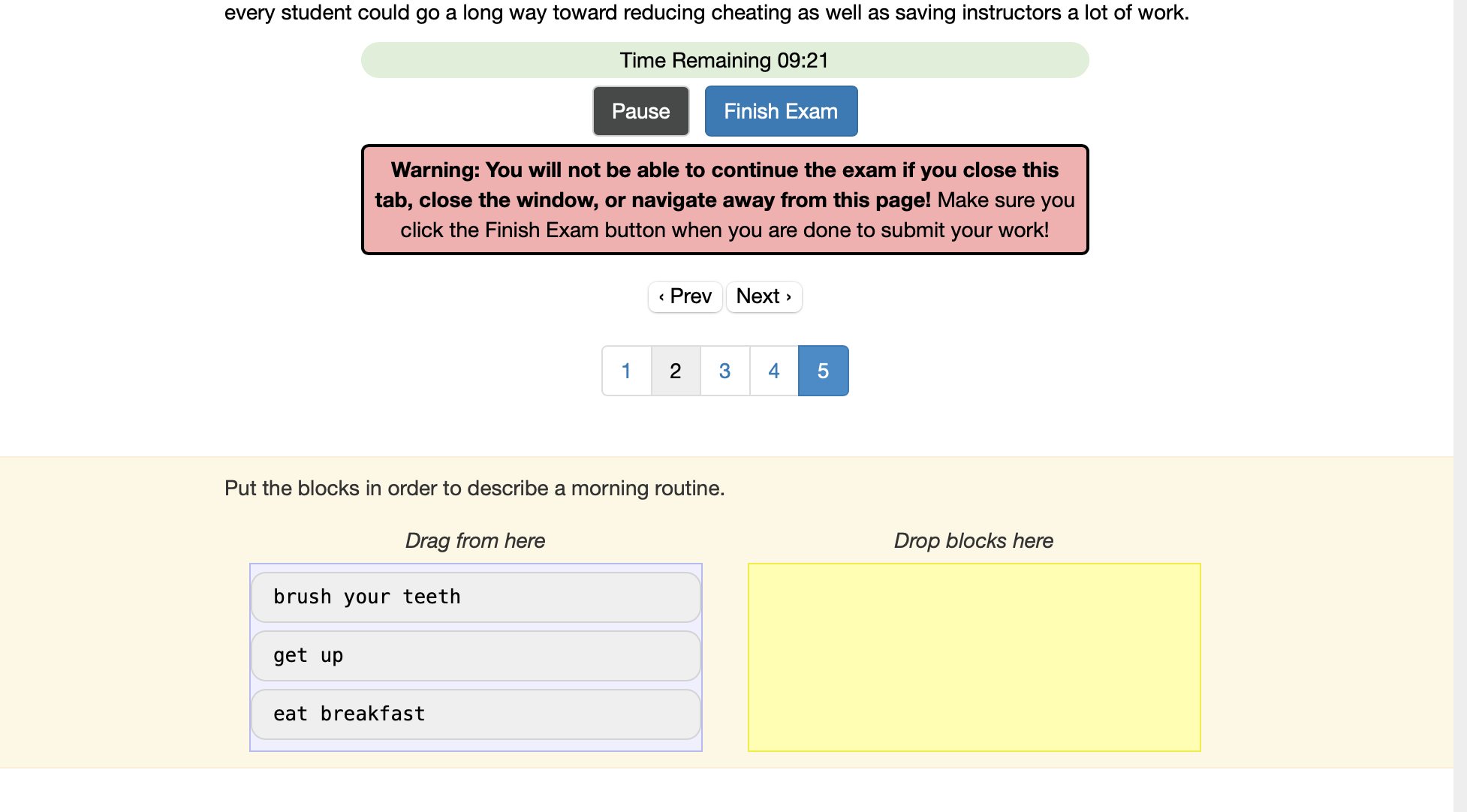
During an exam the students see just one question at a time. They can navigate the questions by number or they can use the prev/next buttons to go from question to question.
When the student navigates to the new question the question they were on is evaluated and the results are sent to the server. Questions that a student has attempted are marked as grey on the numbered interface so students know which questions they have answered.
During an exam the student will not see any feedback on whether they answered the questions right or wrong. Once the exam is completed they will see that feedback unless you have checked the don’t show feedback checkbox.
It is important to remind students that if they close the tab or their browser or navigate away from the page or even try to refresh the page, the exam is over and they will not be able to answer any more questions. Once they click the finish exam button they are done. As an instructor you can reset a students exam from the instructors page, but they will be forced to start over.
When a student submits their exam with the finish exam button or when the exam is automatically submitted due to time expiring, the autograder is run on the server and a score is recorded. If all your questions are autogradable you’re done! If not, you can use the grading interface to manually grade any questions.
Subsection 6.4.2 Resetting an Exam
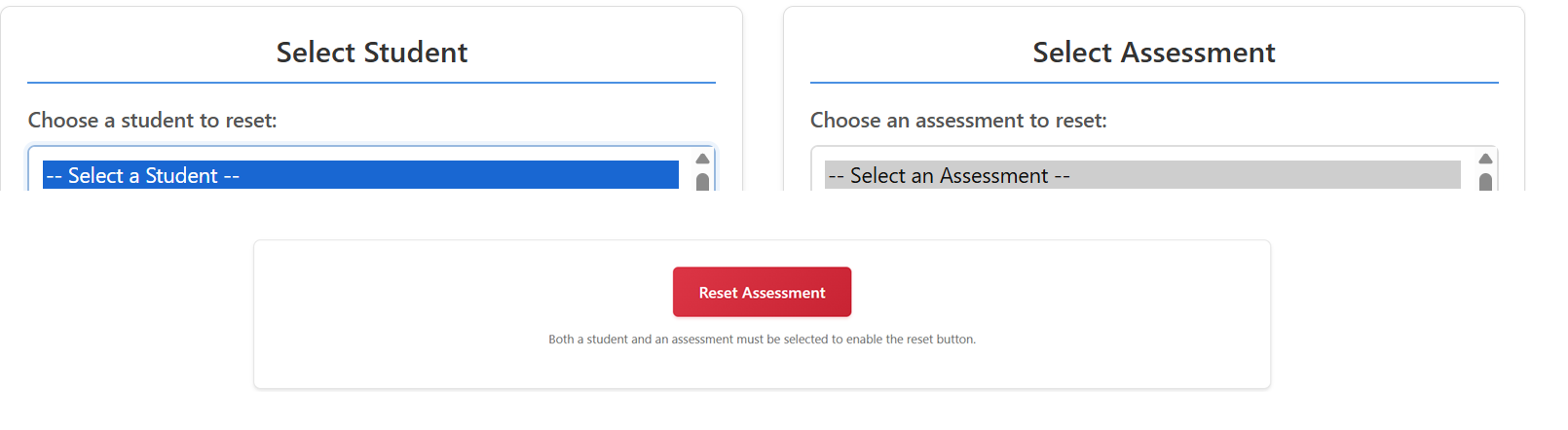
The instructor dashboard allows you to reset an exam for any student.
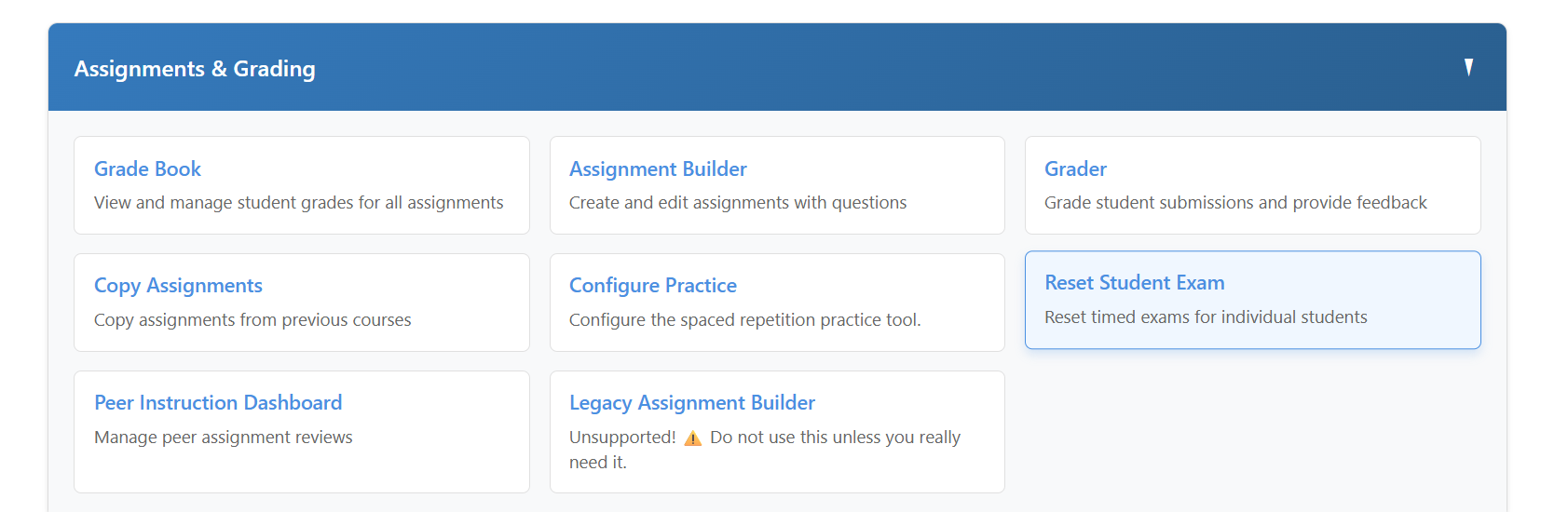
You just select the student and the assessment name and then press the red reset button.