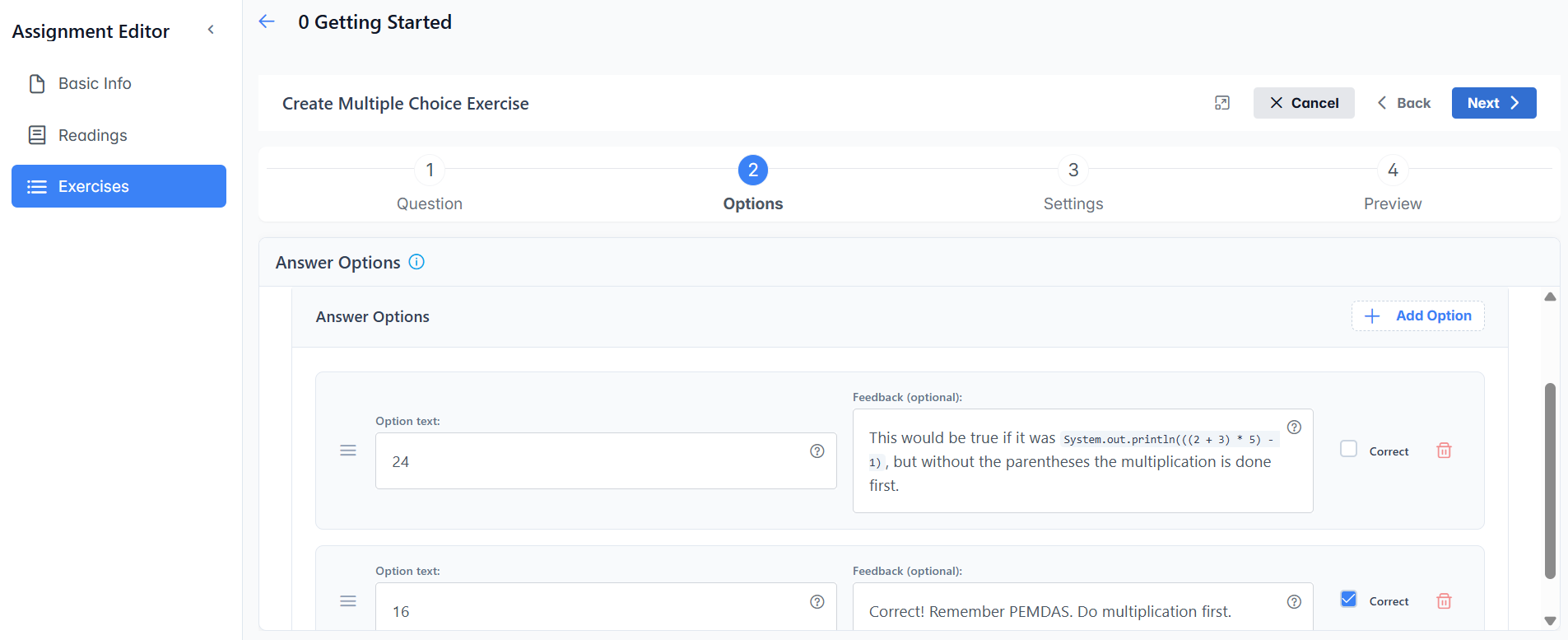
This would be true if it was System.out.println(((2 + 3) * 5) - 1), but without the parentheses the multiplication is done first.
14
This would be true if it was System.out.println(2 + (3 * (5 - 1))), but without the parentheses the multiplication is done first and the addition and subtraction are handled from left to right.
This will give a compile time error.
This will compile and run. Try it in DrJava. Look up operator precedence in Java.
16
Correct! Remember PEMDAS. The multiplication is done first (3 * 5 = 15) and then the addition (2 + 15 = 17) and finally the subtraction (17 - 1 = 16).
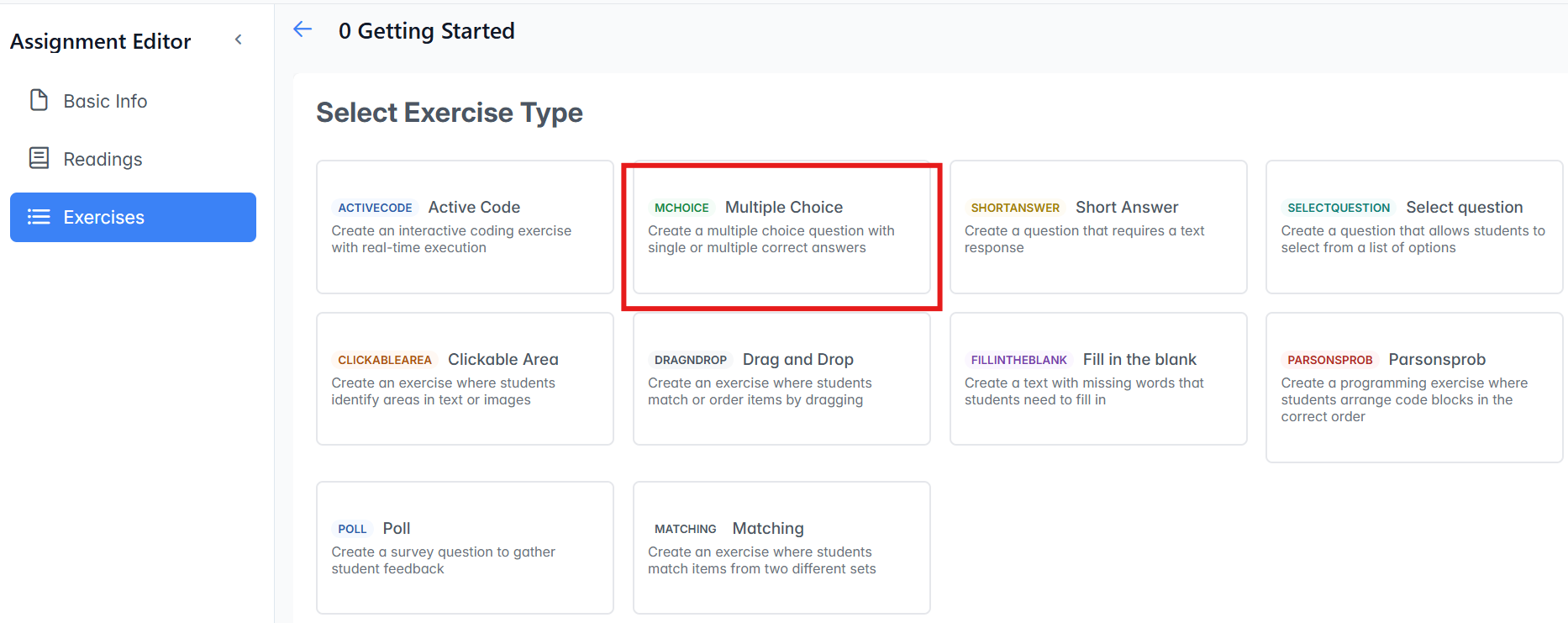
To create multiple choice questions, start or go to any assignment in the Instructor Dashboard "Assignment Builder". In the Exercises section of the assignment, click on "Add Exercise" and select "+ Create New Exercise" and then select "Multiple Choice".
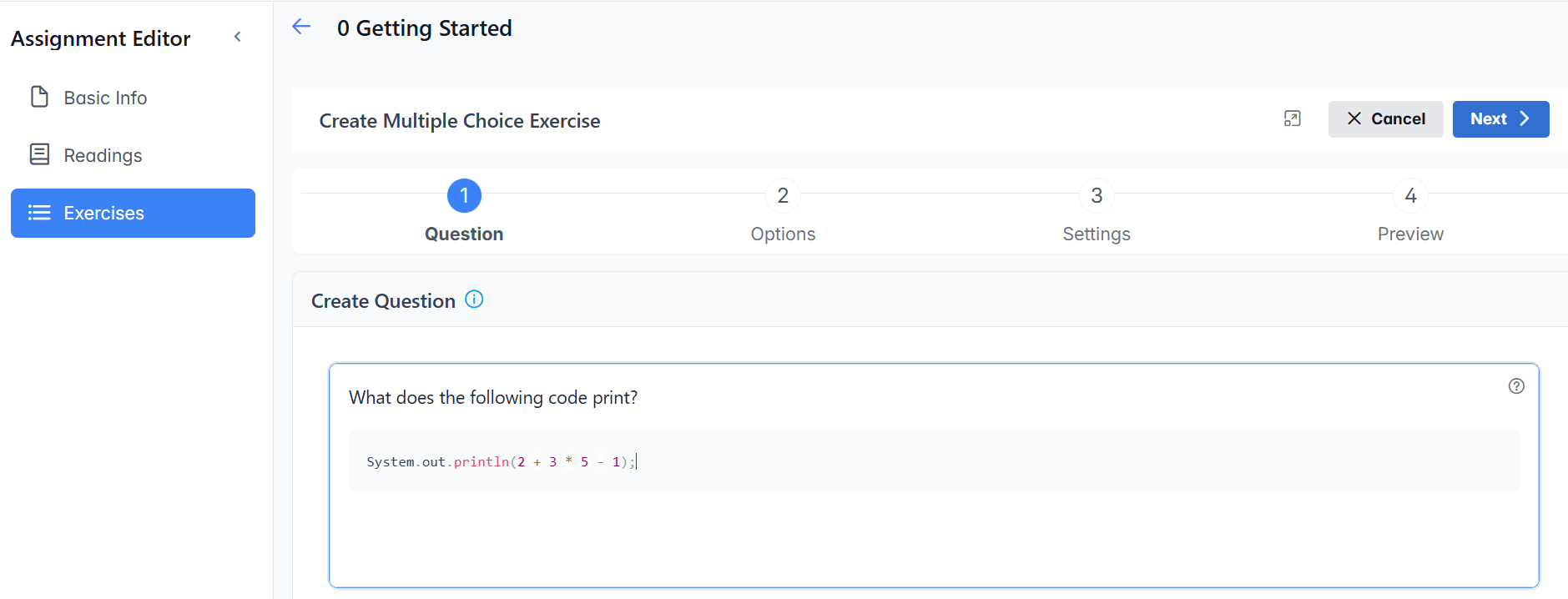
Enter the question. Type in / and press enter to see the menu to format the text and add in images, tables, code blocks, etc. You can also just use Markdown syntax directly (Markdown Cheat Sheet) and put code in between backticks (`) for inline code or triple backticks (```) for code blocks.
Click on Next or 2 to move to the Options tab and enter the multiple choice options. Click on Add Option to add more options. Click on the checkmark next to "Correct" to mark a correct option. You can mark more than one answer as correct. You can also add feedback for each choice that will be shown to the student after they answer the question. Do / and enter to see the format menu or use markdown for each option.
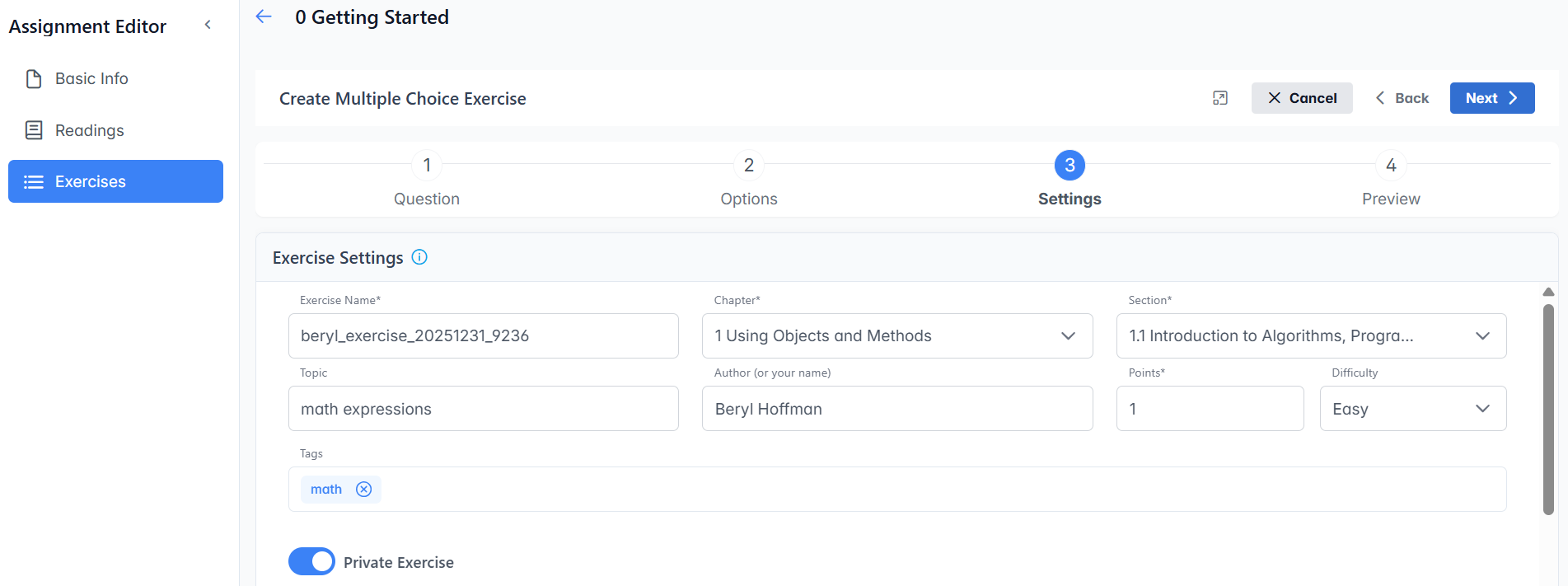
Click on Next or 3 to move to the Settings tab. Here you can set the chapter and section where you want the exercise stored in the assignment builder (where it will show when browsing chapters in the assignment builder), the author, the topic, the number of points for the question, and add tags to help you find the question later. If you change the name of the exercise, make sure it is unique! Some authors put their author names in the exercise name too to make them easier to find. You can also choose to make the exercise private or contribute it to the question bank for other teachers to use. Please make experimental questions private.
Make sure that you Preview the exercise in step 4 and test it before saving it. Although there is no way to delete an exercise once it is saved, you can always edit it later to fix mistakes, make it private, or flag it for the volunteers to fix or delete.