Runestone provides two methods of LTI integration. LTI 1.1 and LTI 1.3. LTI 1.3 is the newer standard and is more secure and more flexible. However, it requires setup by an administrator of your Learning Management System (LMS). LTI 1.1 can be set up by an individual instructor without LMS admin support. If you are using an LMS that your institution administers, we recommend you explore using LTI 1.3. If you are using something like “Canvas Free-for-Teacher” that does not provide administrator access, you will need to use LTI 1.1.
Runestone provides a rudimentary LTI integration using LTI 1.1. So far we have made this work very successfully with Canvas, Moodle, and Brightspace D2L. Others may or may not work. I call this a community supported feature of Runestone because LTI is a huge pain to work with, and it is very difficult to get access to and test against whatever LMS your school has chosen. Community support is available on the #lti_community_support channel of the Runestone Discord Server.
When you use LTI your students do NOT and should not register on Runestone Academy, the LTI interface registers your student with Runestone the first time they access it from your LMS. In addition, Instructors need to use one of the LTI links to your book in order for grades to transfer.
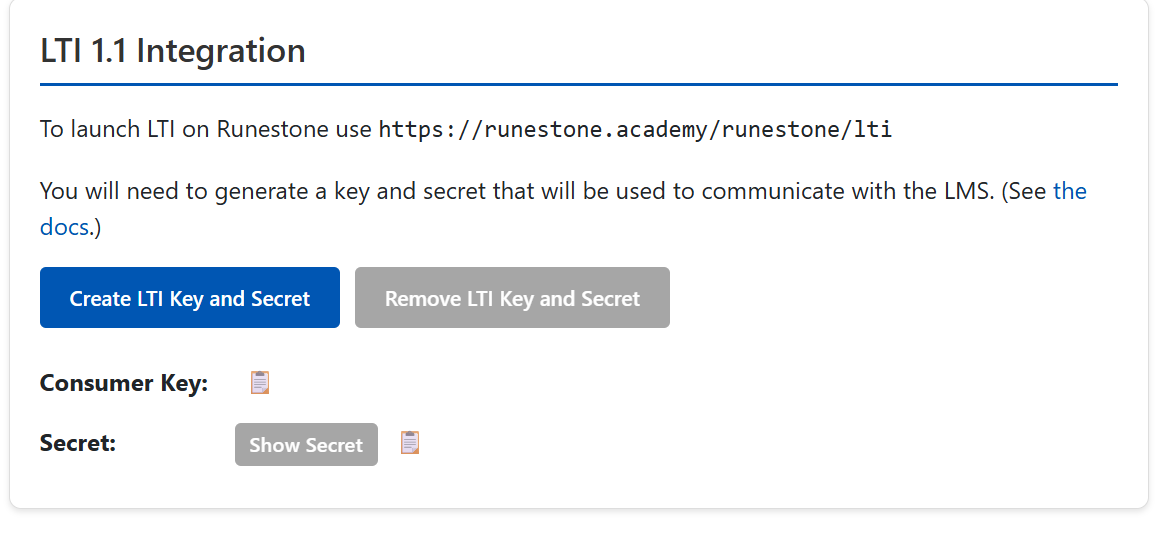
Click on the Create LTI Key and Secret button. Click the Show Secret button. You will use these in the next phase. Note that there is also a Remove LTI Key and Secret if you can’t get LTI working with your LMS or just decide you don’t want to use it you should remove the keys. This will allow your students to access assignments from the regular assignments page.
Once the LTI Key and Secret have been set up, your course is in LTI mode, and the assignments will only be accessible from your LTI, so you must do Phase 2, below, or your students won’t have access to any assignments.
:Name: Runestone
:Consumer key: Enter this from Phase 1.
:Shared Secret: Enter this from Phase 1.
:Launch URL: ``https://runestone.academy/runestone/lti``
:Domain: Leave blank.
:Privacy: Select Public; otherwise, Runestone won’t work.
:Custom Fields: Depends on the installation type:

    -   For a site-wide installation, or for installing the Runestone external app for use across multiple courses, leave this blank.
    -   If installing for a single course, add ``custom_course_id=xxx``, where ``xxx`` is the Runestone ID of the course (visible in the upper lefthand corner of each page in your Runestone course).
:Description: Interactive textbooks from Runestone Academy
In Canvas, add an assignment. For the submission type, select “External Tool.” For the External Tool URL, use the LTI link you just copied. You’ll have to manually enter the same due date/time and a similar assignment name; these aren’t copied automatically. You must be sure the Load This Tool In A New Tab checkbox is checked.
Students can now click on this assignment and work it. **If they don’t click on the assignment, they won’t receive a grade.** When the assignment is due, go to Runestone directly from your Canvas course by using an assignment link. Otherwise, grade reporting won’t work. In the grading tab of the instructor interface, grade the assignment, then click the “Release Grades” button. Doing this will push all grades to Canvas. (If you need to regrade later, you can always click the “Hide Grades” button, and then do “Release Grades” again.)
The following instructions are for Moodle, but should work for any LMS with LTI Support. Please note that certain items may have naming variations (ie. Moodle External Tool / Canvas External App).
:Name: Login to Runestone
:Tool URL: https://yourHost.blahblah.edu/runestone/lti
:Consumer key: Enter the key you copied for `consumer` from Phase 1
:Shared secret: Enter the key you copied for `secret` from Phase 1
:Icon URL: https://yourHost.blahblah.edu/runestone/static/images/logo_small.png
:Share Email: True
:Share Name: True
:Custom params: custom_course_id=xxx, where xxx is the Runestone ID of the course (visible in the upper lefthand corner of each page in your Runestone course).
In Moodle, create a new enrollment external app directly to your course and assignment. You will need to repeat this for each assignment. You will also need the database values for your course ID, and assignment ID. Get these from step 2.2. Please note that in order to receive roles and grades, "Accept Grades" must be checked in Moodle. In other LMS’s this may be referenced by a "Share IMS Names and Roles" or similar.
:Name: Assignment 1
:Tool URL: https://runestone.colorado.edu/runestone/lti?assignment_id=&custom_course_id
:Consumer key: Enter the key you copied for `consumer` from Phase 1
:Shared secret: Enter the key you copied for `secret` from Phase 1
:Icon URL: https://yourHost.blahblah.edu/runestone/static/images/logo_small.png
:Share Email: True
:Share Name: True
:Custom params:
:Accept Grades: True
Students can now click on these external tool assignments to be enrolled/logged directly into your Runestone course and assignment. The grades should appear in Moodle once they are released in Runestone through the Instructor interface using the “Release Grades” button. (If you need to regrade later, you can always click the “Hide Grades” button, and then do “Release Grades” again.)
Depending on how D2L is set up, you may need to be an administrator in order to set up your links for class. However, in some setups, instructors have permission to make their own LTI links.
To check, while in your class on D2L, you can go to Course Admin - External Learning Tools, then click the Manage Tool Links (Legacy). From there, click the New Link button.
copy this from the LTI configuration panel for the textbook login https://runestone.academy/runestone/lti or from the individual assignment in the Assignments tab of the Instructor’s Page.
Now, from anywhere in your course, you can select Existing Activities - External Learning Tools and then the link you created. After adding this link, make sure that you make sure the link is configured to Open as External Resource. That way the right information will be passed to the textbook.
Students will be able to click on this link when you make it available to them as long a the Visible to Students checkbox is checked on the assignment in runestone.
In the grading tab of the instructor interface click the Release Grades button. Doing this will push all grades to D2L. (If you need to regrade later, you can always click the “Hide Grades” button, and then do “Release Grades” again.)