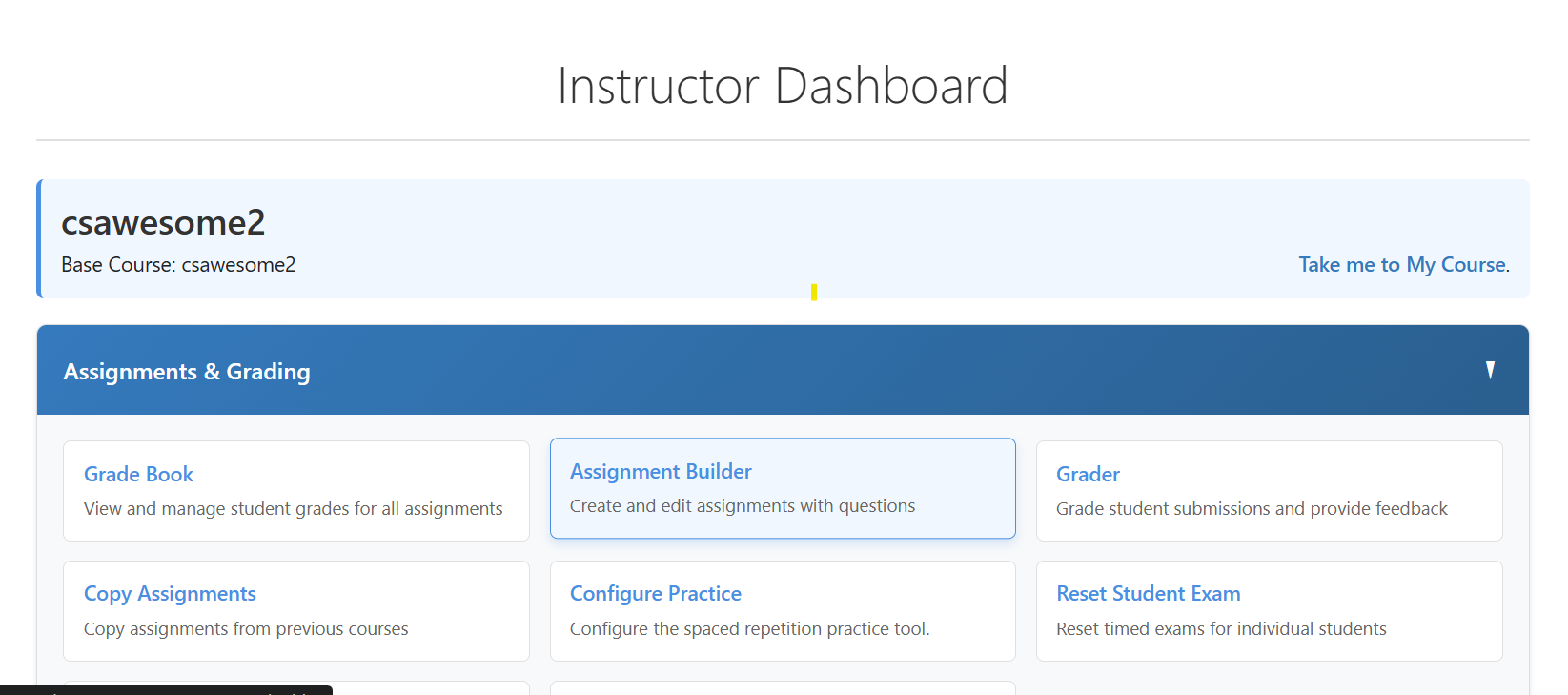
This will take you to a list of assignments that you have created or copied. Click on + Create New Assignment button on the top right corner of the page.
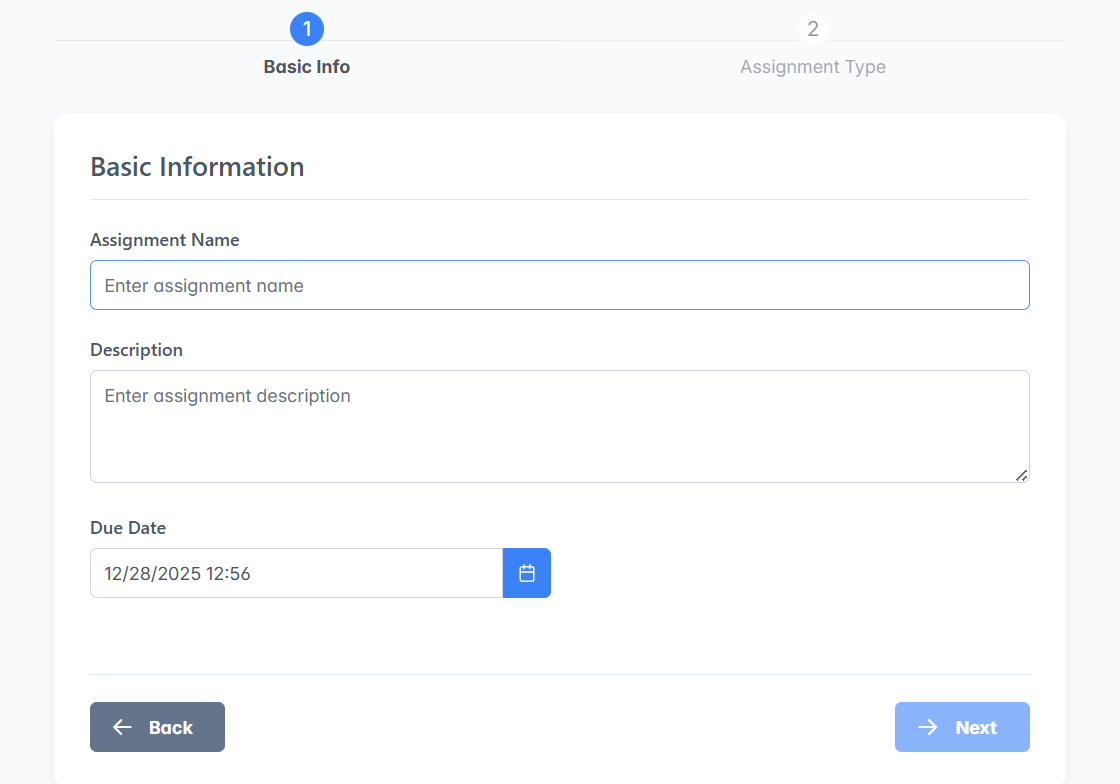
Fill in the basic information for the new assignment such as a name, description, and due date. Then, click on the Next button. The builder will give an error message if the name of the assignment is not unique among your assignments.
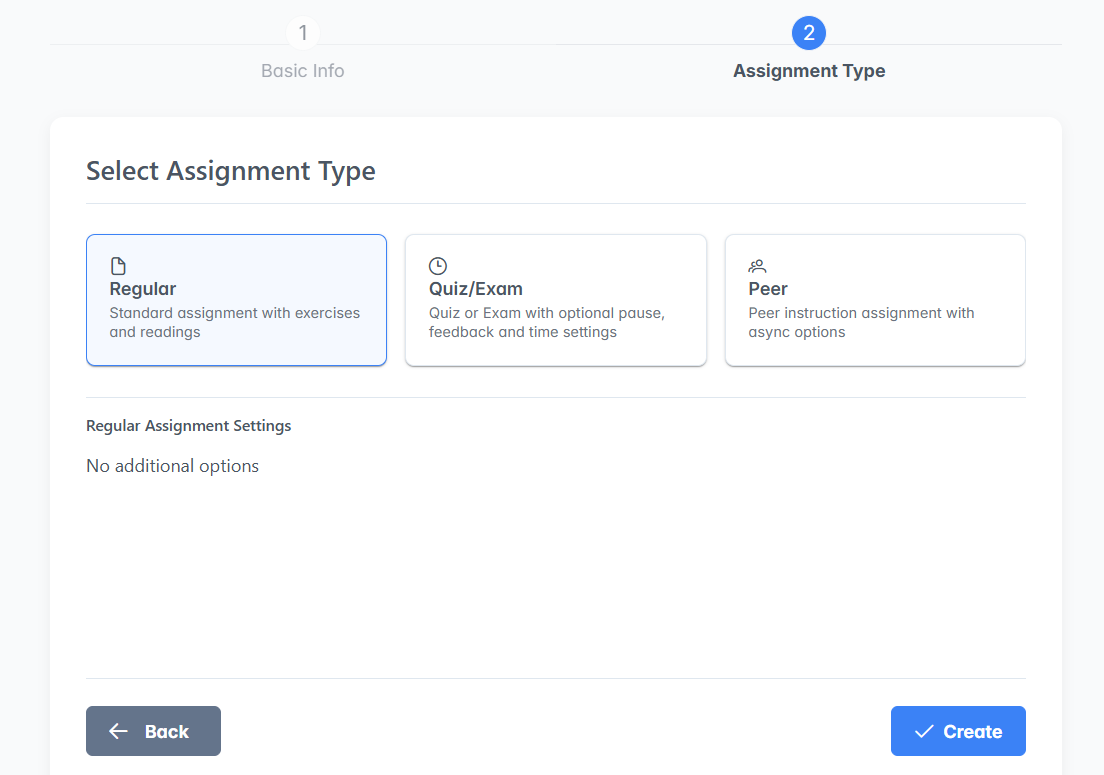
There are 3 types of assignments that you can create: Regular, Quiz/Exam, or Peer Instruction. Choose Regular for an ordinary assignment and then click on the Create button. See the next chapters for information on quizzes and peer instruction.
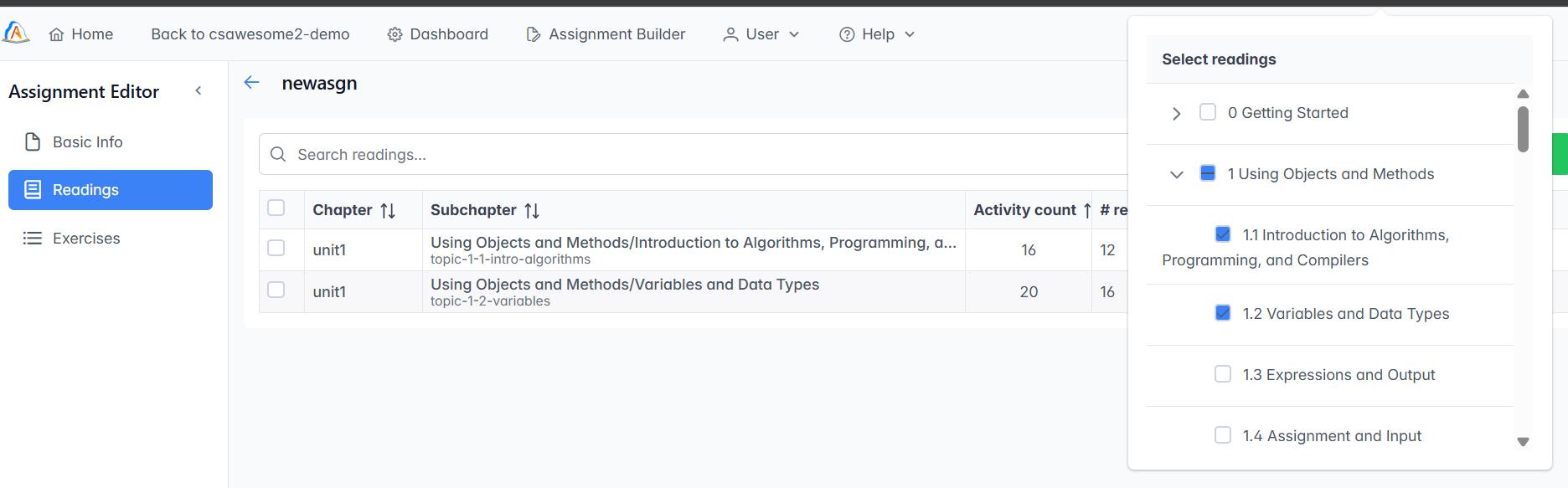
You will be put into the assignment page with three tabs on the left: Basic Info, Readings, and Exercises. Readings allow you to select whole chapters or parts of chapters for your students to read. You can assign points to the readings by tracking the number of activities they attempt in each subchapter. In readings, these are only graded for interaction, not correctness. Exercises are individual problems for students to solve that can be graded for correctness, including active code, short answer, multiple choice, parsons problems, etc. These can be from the ebook that you are using or even problems that you write yourself. An assignment can have just readings, just exercises, or both. See the subsections below for setting up Readings and Exercises.
Click on the Readings tab and then the Choose Readings button. Choose subchapters or pages that you want your students to read. Click on a white space below the pop up menu to close it when you are done selecting readings.
# required: How many of the activities on the page do you students need to do in order to get the points for this section. These are only graded for interaction or attempts, not correctness. They will get 1 activity for visiting the page. By default, this is set to 75% of the number of activities on the page. Please remember that the number required for the points is all or nothing, so if they miss one they will not get the points. This is why it may be better to leave it at 75% or a little below the number of activities in case they miss one.
Points: How many points for completing this section. You can click on the pencil button at the top if you want to change the number of points for all the readings at once.
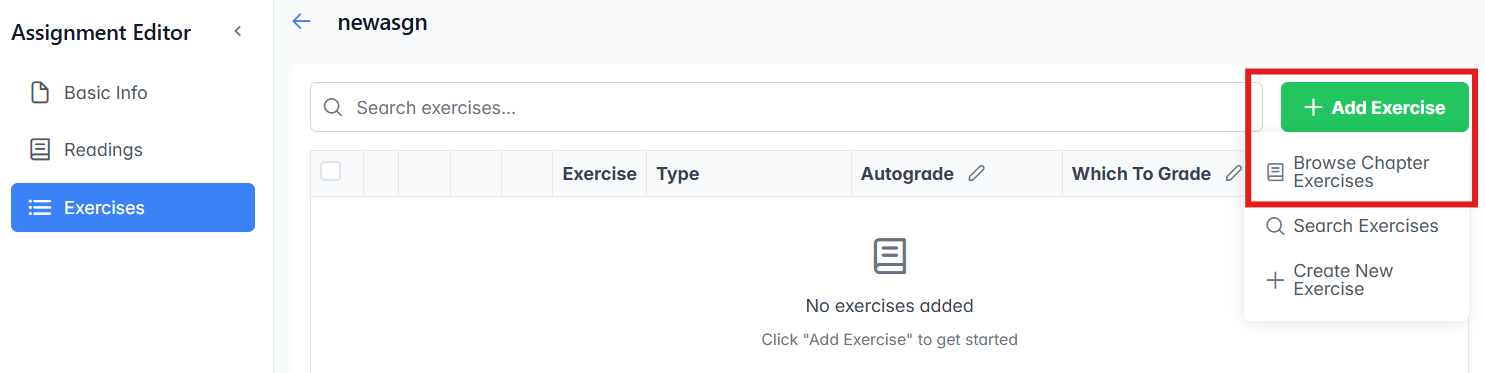
Click on the Exercises tab on the left to add individual exercises for students to do that can be graded for correctness. Then, click on the + Add Exercises button on the right. You will see 3 choices: Browse Chapter Exercises, Search Exercise, and Create New Exercise. Click on Browse Chapter Exercises to choose exercises.
You can use the "All Exercises" toggle at the top to switch to just the "Book Exercises" to filter by just exercises that appear in the book. There are also exercises contributed by the teacher community.
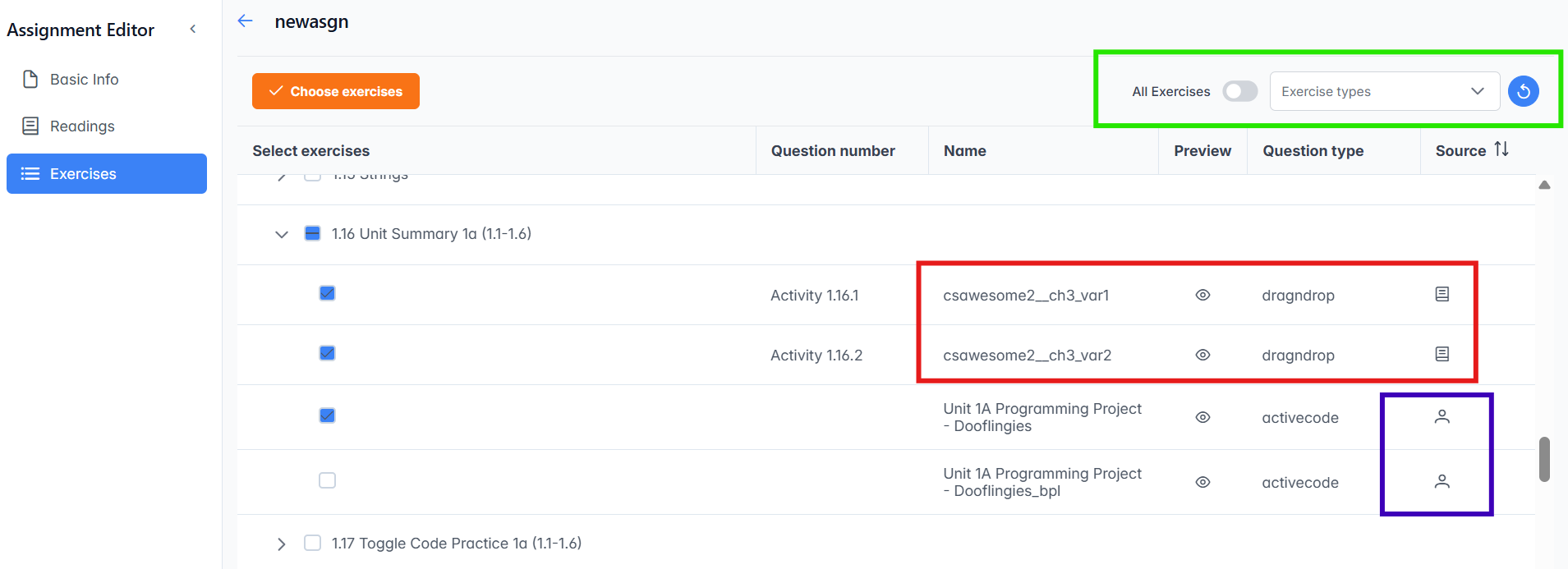
Scroll to the chapter and subchapters that you want and click on the triangles next to them to expand them. When you see the exercises, you can click to choose them or click the eye to preview them before choosing. Exercises can be from the ebook that you are using, written by its author, or contributed by the community. If the exercise has a name that starts with the ebook’s name like "csawesome2__" and has a book icon under the source column, then it is from the ebook, shown in the red box below. If it has a percon icon under Source, it is contributed by another teacher in the community, shown in the purple box below. There are also controls in the green box below that can be used to filter by problem type or to just show the problems from the book. After selecting problems, click on the orange Choose exercises button to add them to the assignment.
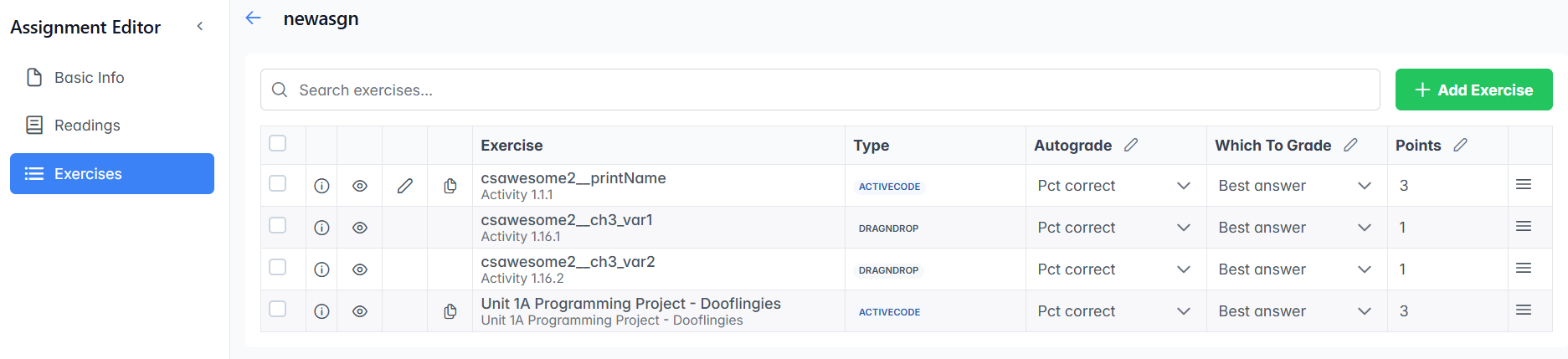
After adding the exercisee to the assignment, you will see the list of exercises you have chosen. You can drag to reorder them. And there are 3 things you can change for each exercise:
Autograde: options here are Pct Correct, All or nothing, Interaction, or manual. If the exercise has unit test autograding code, it will be set to "Pct Correct". If it does not have autograding, it can be set to Interaction only where just interacting with it gives the points or manual, where you will need to grade it.
Points: how many points for this question. The pencil button at the top of each column can be used to change the number of points for all the exercises at once.
Some books have large quizbanks of community contributed questions. However, some of these community contributed exercises might have errors. If you are previewing a question and it is obviously bad, or incorrect, or just someone experimenting, use the Flag Question button to let us know. We have volunteer editors that help us clear out or correct these bad questions.
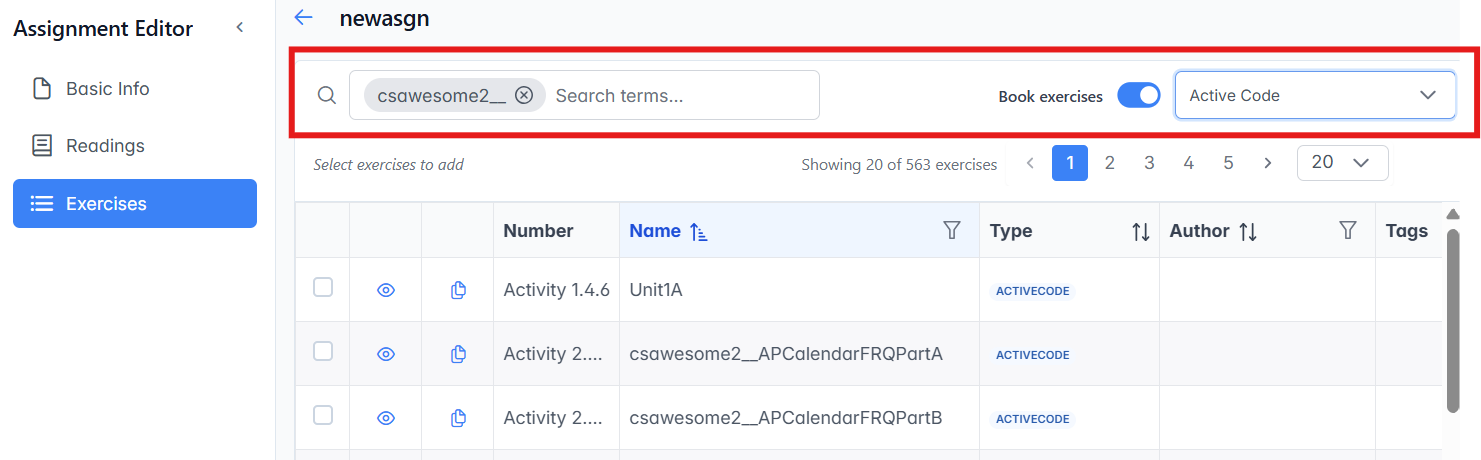
You can also Search Exercises by name or keyword or author if you are looking for something specific. Click on Add Exercises button and then select Search Exercises instead of Browse Chapter Exercises. Type in a search word and enter in the search box. You can filter by type. The default is to search for exercises associated with the ebook that you are in, but you can toggle "Book Exercises" to "All Exercises" to search for exercises in other books. You can then click to select or preview exercises from the results and then click on the orange Choose Exercises button to add them to the assignment. You can also Copy Exercises to change them.
Make sure you do not accept all the exercises in a lesson without toggling for "Book exercises" because there may be many community-added ones that may or may not work! When you are done adding exercises, click on the back arrow by the assignment name or on the Assignment Builder button at the top to return to the main assignment list page. By default, the new assignment will not be visible to students.
Please make sure that you slide the visibility toggle of an assignment in the assignments list to visible when you want your students to see it. If you forget to toggle this to visible, then the assignment will not show up in the list that your students can see on the assignment page.
For exercises in an assignment to be autograded, the assignment must be visible and completed beforethe deadline while the students are working on it, and the exercises must be the type of exercises that support autograding. For example, the book active code exercises in the ebooks CSAwesome and CSAwesome2 all have unit tests that support autograding, but the community-contributed exercises and exercises from other books might not have unit tests. When you add an active code exercise to an assignment, you can tell if it has autograding tests if it comes up as "Pct Correct" in the Autograde colum and presents the autograding test results when run. Otherwise, it can be added as "interaction" only without grading for correctness or for "manual" grading. Short answer questions can be autograded for interaction, but require manual grading for content.
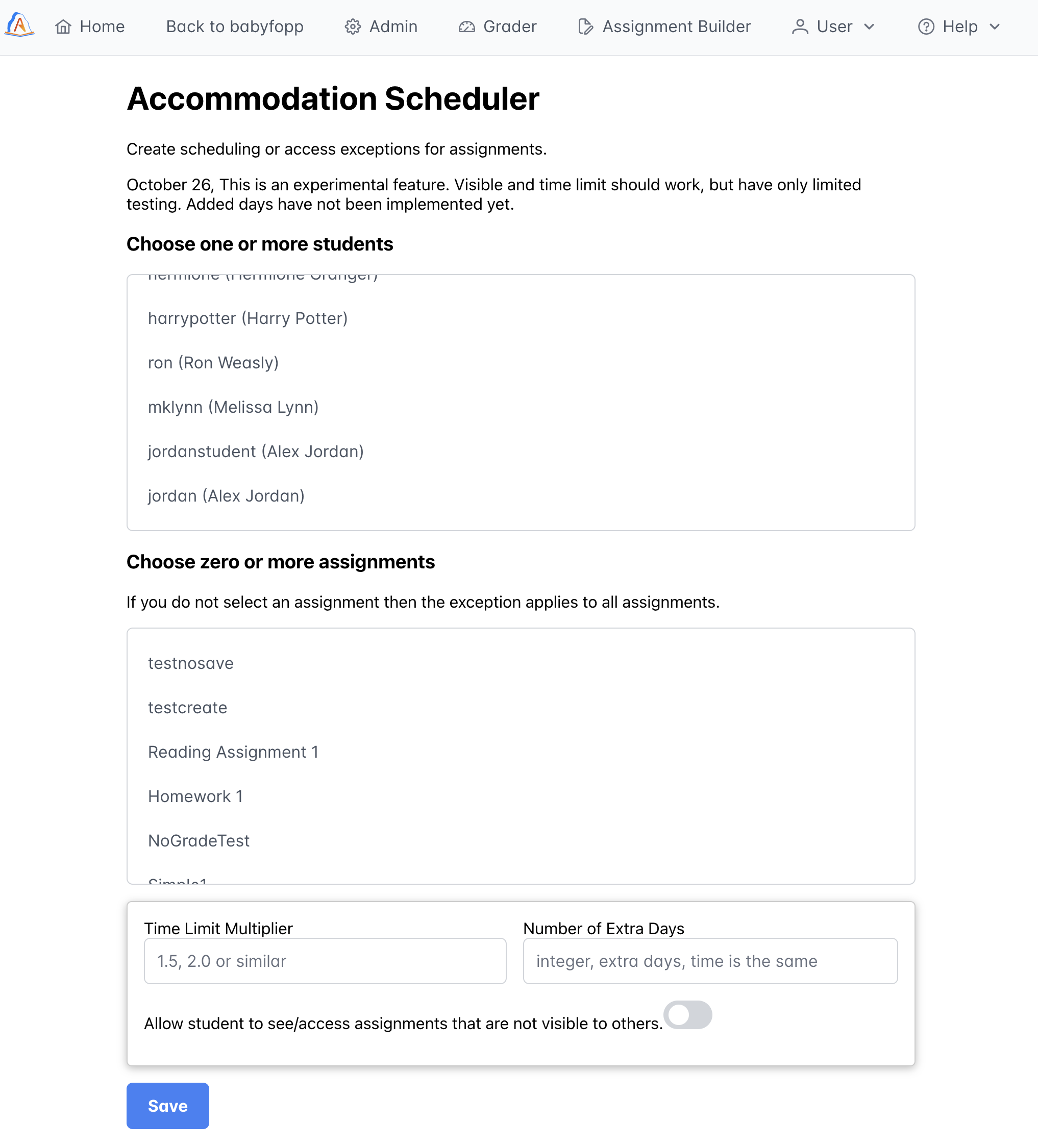
Runestone allows you to create accommodations for students who need them. You can create an accommodation for a student in the Instructor Dashboard by clicking on Manage Accommodations under the Student Management menu or use the link from the course home page. There are three kinds of accommodations that you can create:
When you create an accommodation for extra time on timed assessments, you can specify a multiplier for the extra time that the student will receive. Normally this is something like 1.5 or 2.0 for the student. This extra time will be added to the time limit for any timed assessments that the student takes. The student will see the extra time on the exam page.
You can set this accommodation for a specific student or for a group of students. If you set it for a group of students, then all students in that group will receive the extra time. If you set it for a specific student, then only that student will receive the extra time. You can set it once by just selecting one or more students and setting the multiplier value. This will then apply to ALL assignments. It can be ovverridden for a specific assignment at any time, as a specific assignment will take priority over the general accommodation.
When you create an accommodation for an extended due date, you specify the number of extra days that the student will have to complete the assignment. This can be set for a specific student or for a group of students. If you set it for a group of students, then all students in that group will receive the extra time. If you set it for a specific student, then only that student will receive the extra time. You can set it once by just selecting one or more students and setting the number of extra days. This will then apply to ALL assignments. It can be ovverridden for a specific assignment at any time, as a specific assignment will take priority over the general accommodation.
If you need to grant a further extension, you can do so by creating a new accommodation with more days. If you gave them 3 days at first, but that wasn’t enough, you can enter 5 days to give them an additional 2 days.
This is for situations where the assignment is not visible to the students, but you would like to mail the student a link to an exam, maybe a makeup exam. Or an extra assignment, or whatever. This accommodation requires both a student and an assignment. When the accommodation is saved, then the assignment will show up for the student in their assignment list, or you can email the student a link to the assignment and they will have access.